
1. Navigate to https://businesscredit.coles.com.au
2. Enter your registered email address into the Enter your email address field, then select Log in.

Tip: Once Log in is selected, you will receive a one-time password to your email address for verification purposes.
3. Click the Verification code field and enter your Verification Code and select Verify.

4. If this is your first time logging in, you will now be prompted to set your new 4-digit login passcode. Enter a 4-digit numerical passcode and then select Create passcode.

5. Once you have logged into the web portal, navigate to Cards to find your card in order to activate.

6. Select the card that you wish to activate, and then select the Activate card button.

7. You will now be prompted to enter a 4-digit PIN that you would like to use for your new card. Enter your 4-digit PIN and click Confirm.

8. Your card has now been activated, and your PIN has been set. You can now make purchases with your new Coles for Business card.

Tip: Your card has now been activated. If you want to view your card details in order to make an online purchase, continue on with the next steps.
9. To view your card details, select the Show details button on the right side of your screen.
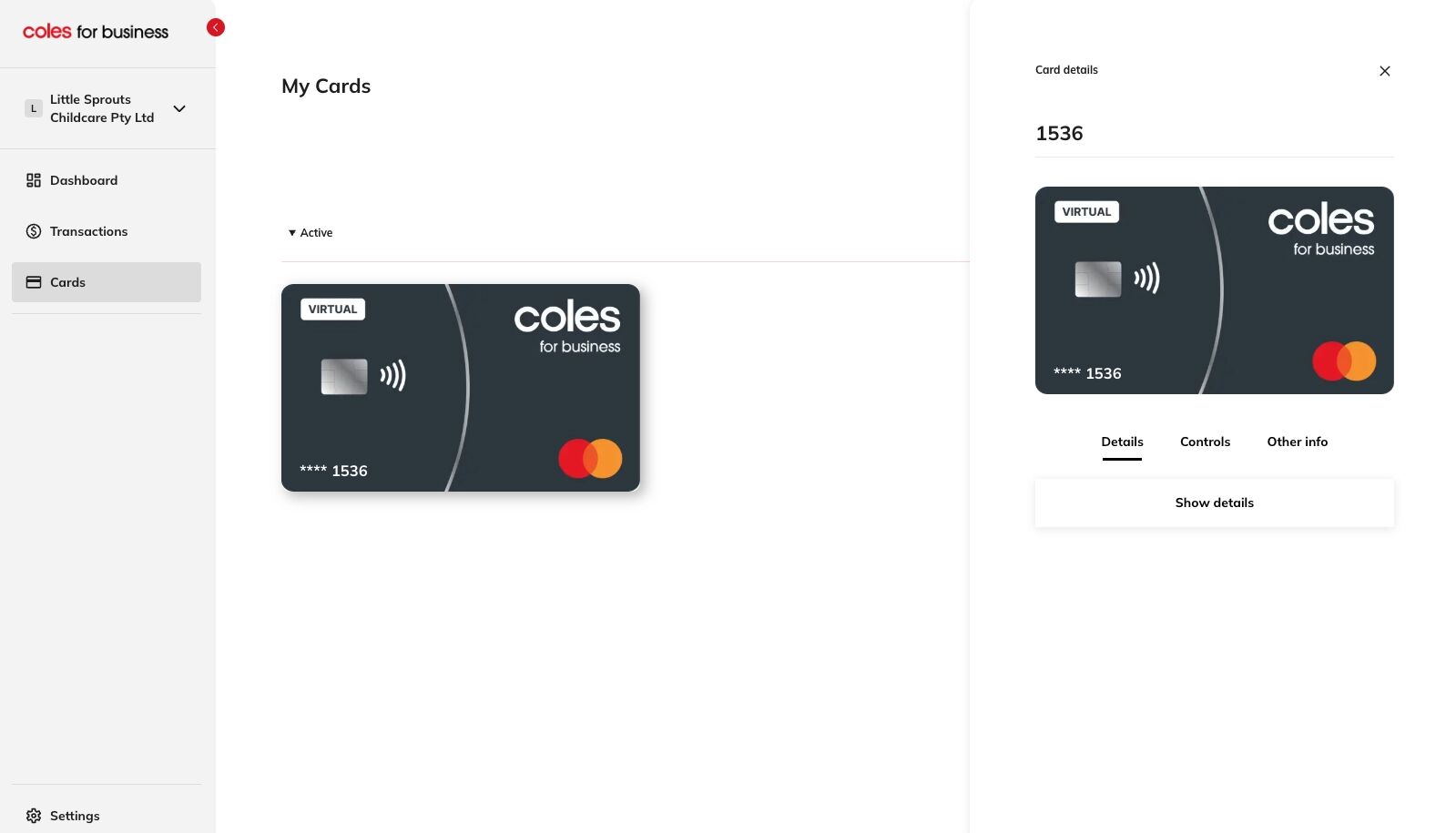
10. Once you select Show details, a new tab will open. Select View Card Details within this tab.
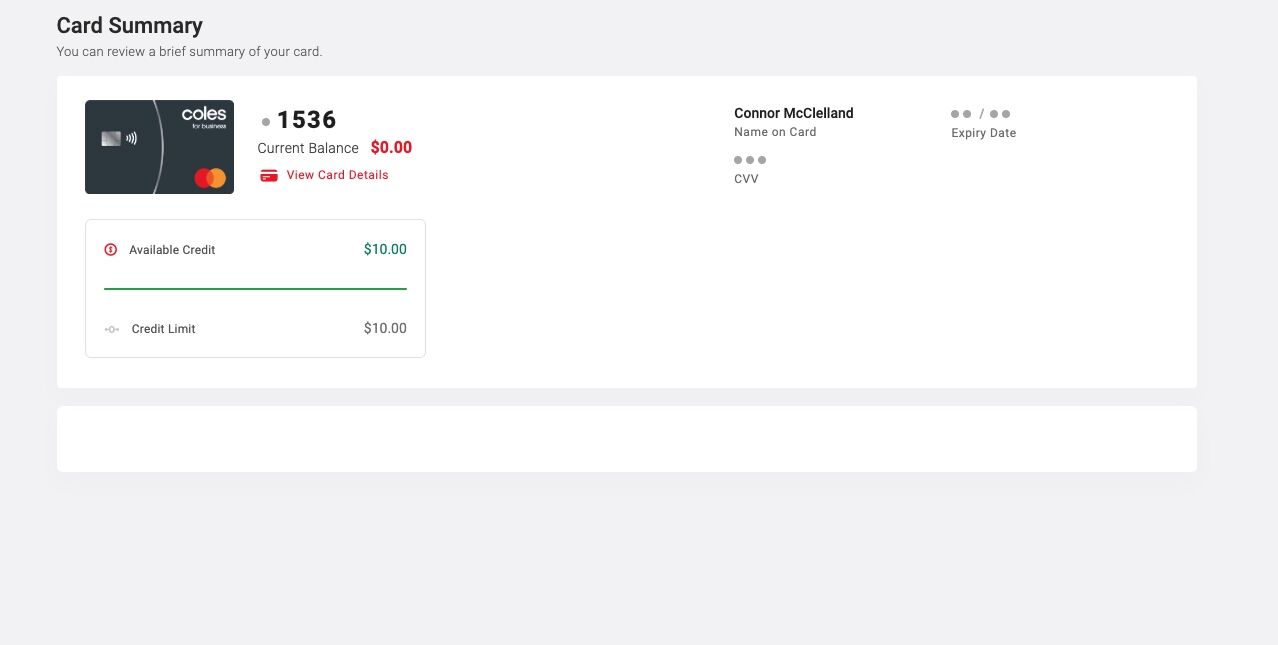
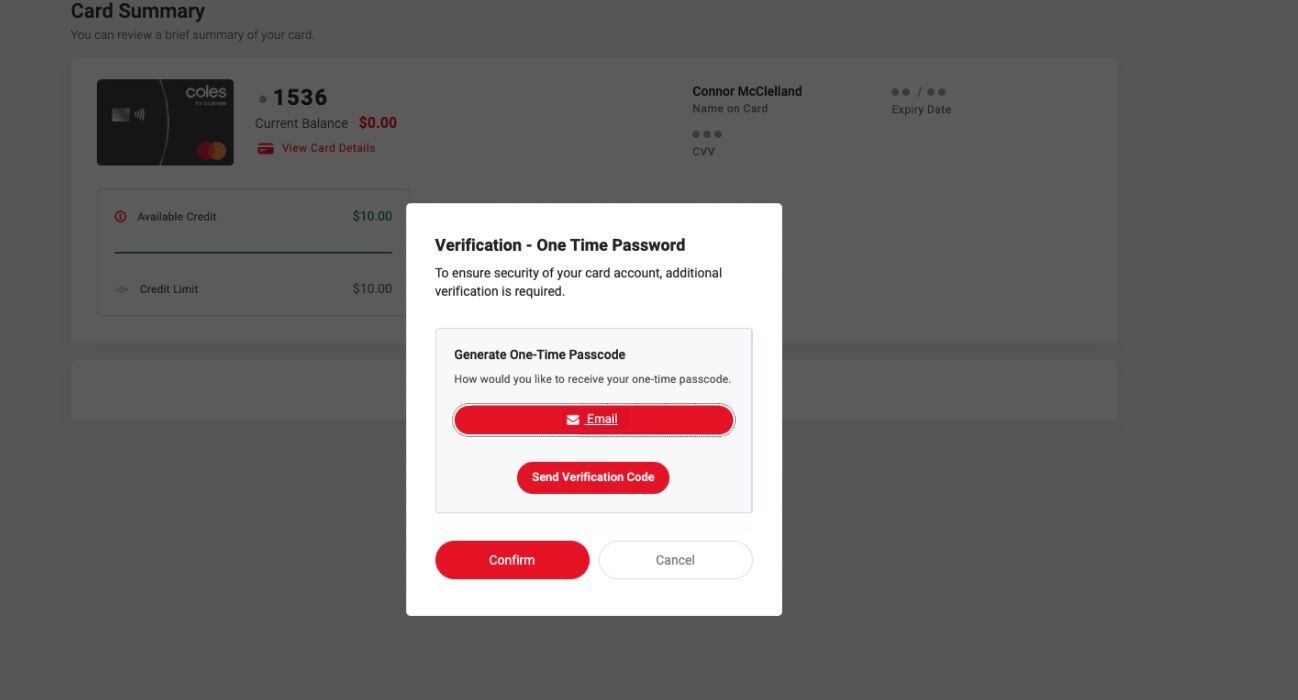
11. To securely view your card details, an email verification code will need to be requested and confirmed before your card details become visible. Select Send Verification Code to trigger the email code.
12. Once you receive the email verification code in your inbox, copy and paste the code into the Email Code field below, then select Confirm.
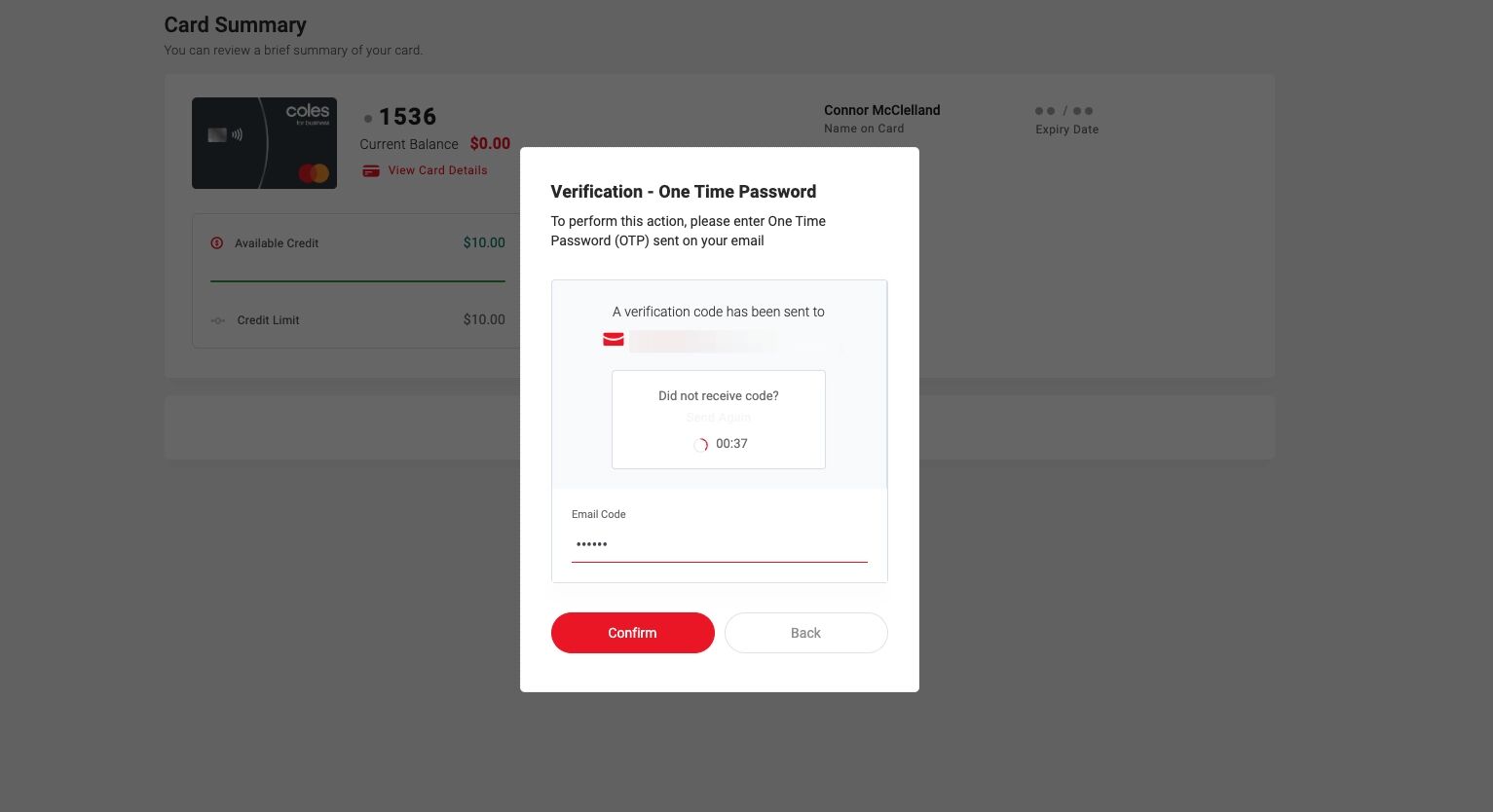
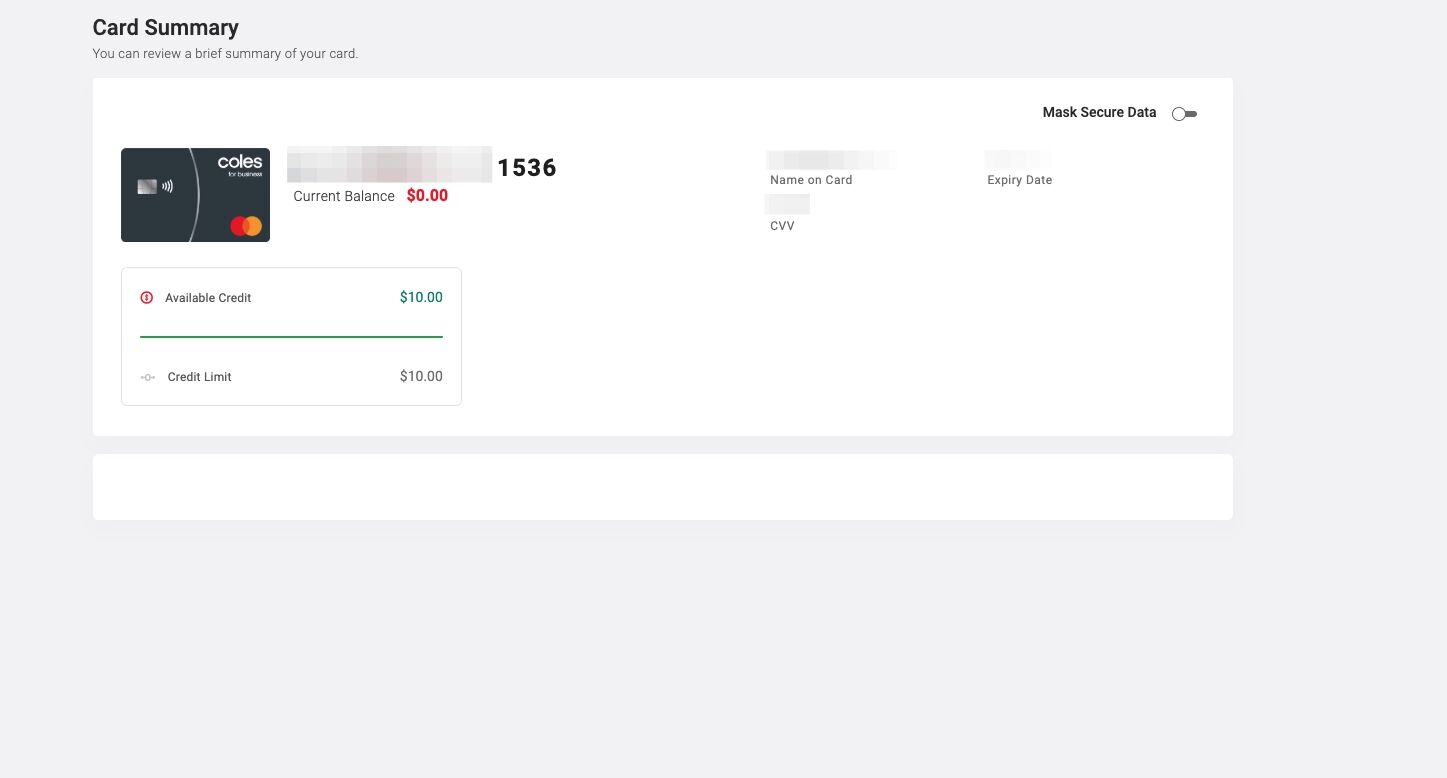
13. Your card details will now be visible, including your 16-digit PAN number, your card expiry date, and your 3-digit CVV. (Note: these have been redacted from the guide.)
Alert: Important: We will never ask for your 16-digit card number (PAN), PIN, or passcode over the phone.
Never disclose your full PAN, PIN, or passcode to anyone via phone, email, or text message.
Never disclose your full PAN, PIN, or passcode to anyone via phone, email, or text message.